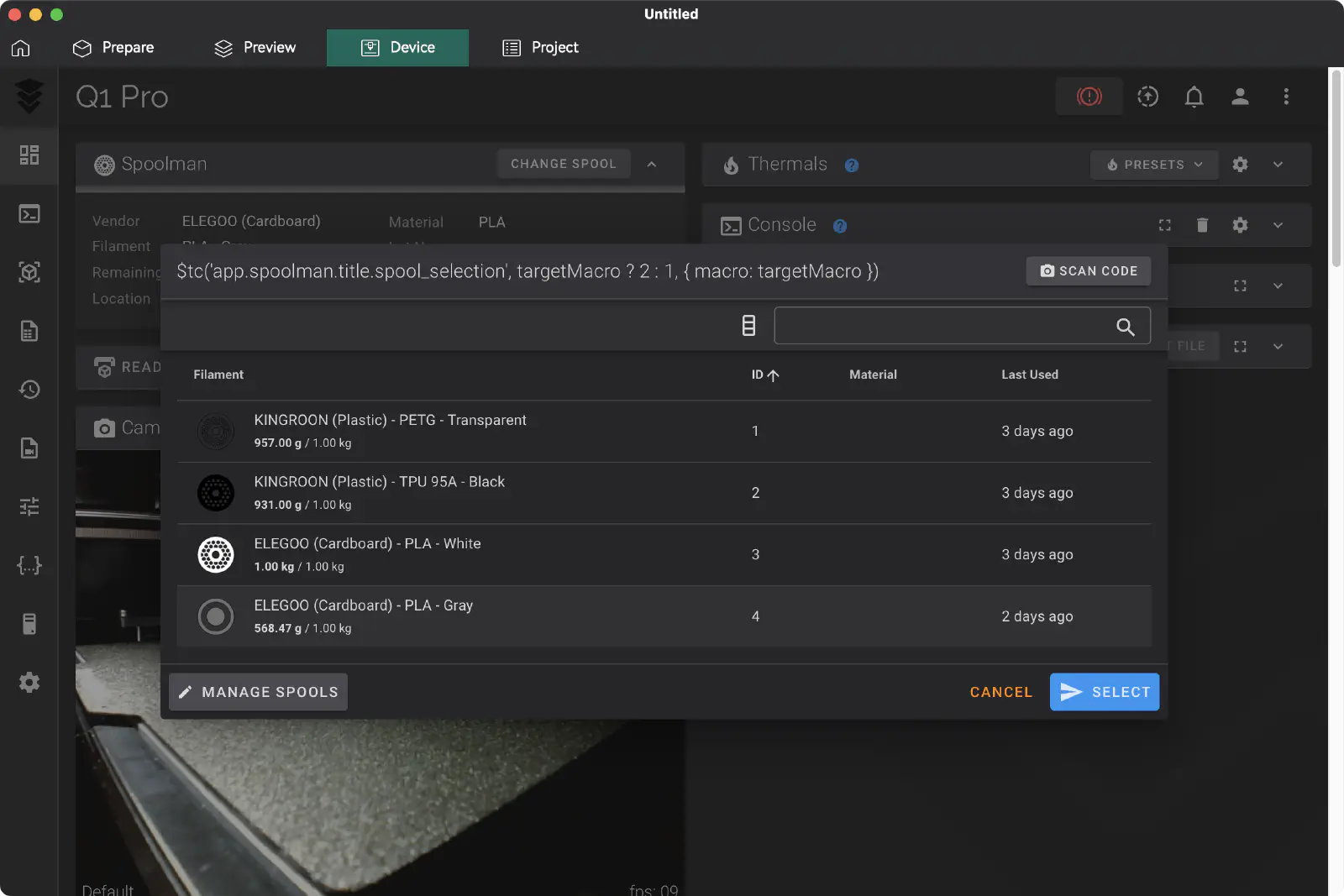
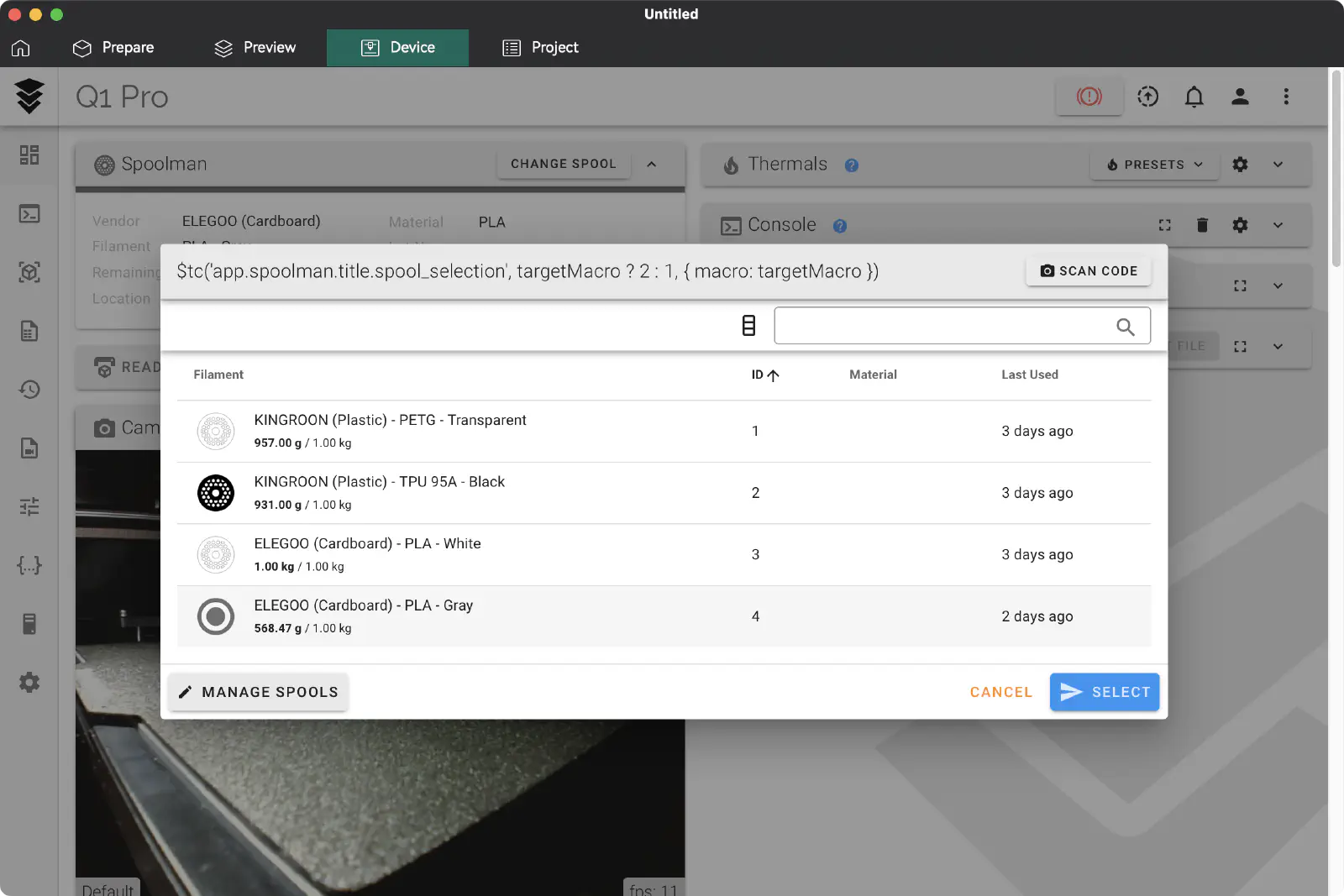
Spoolman interface in Fluidd
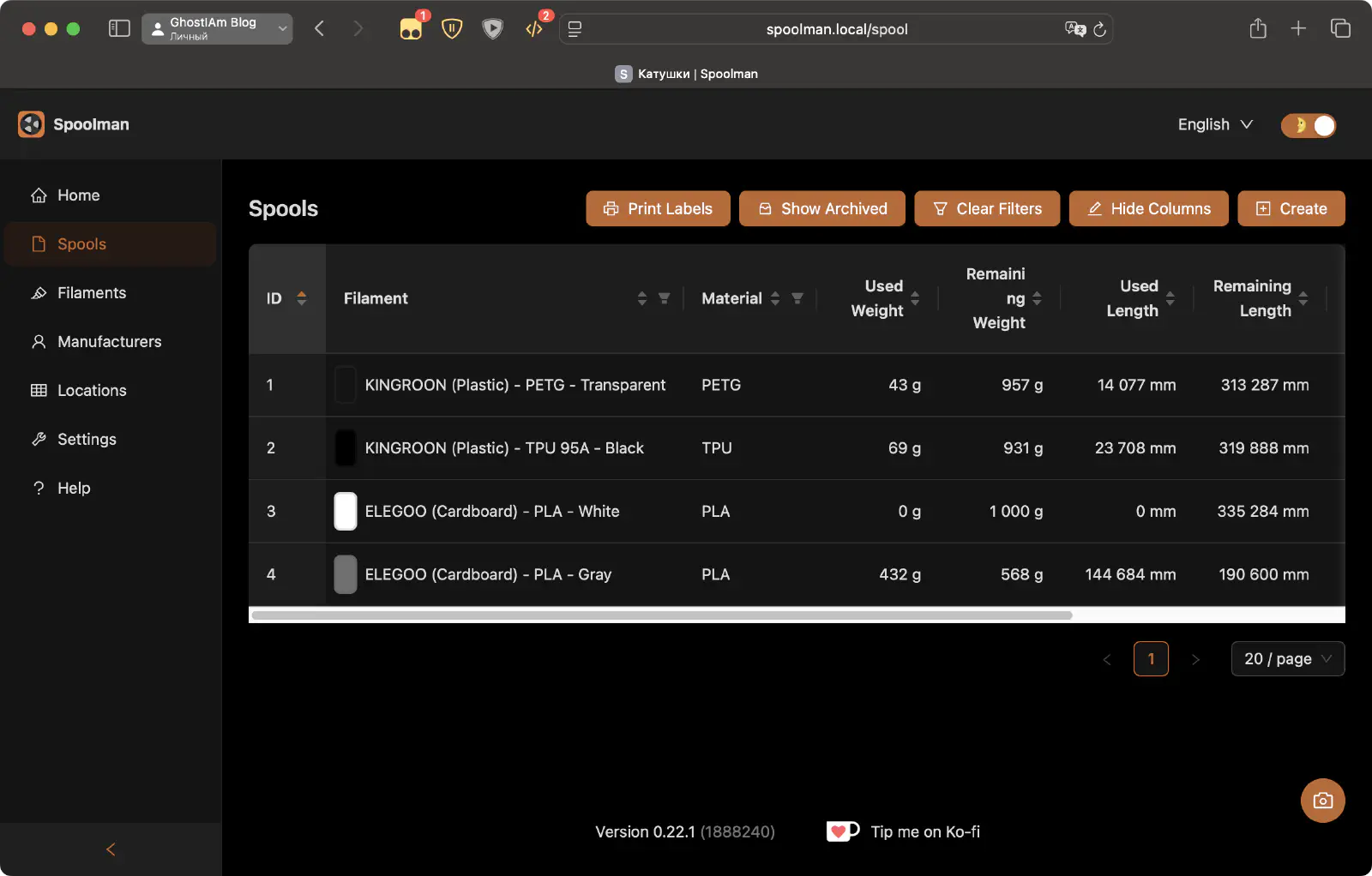
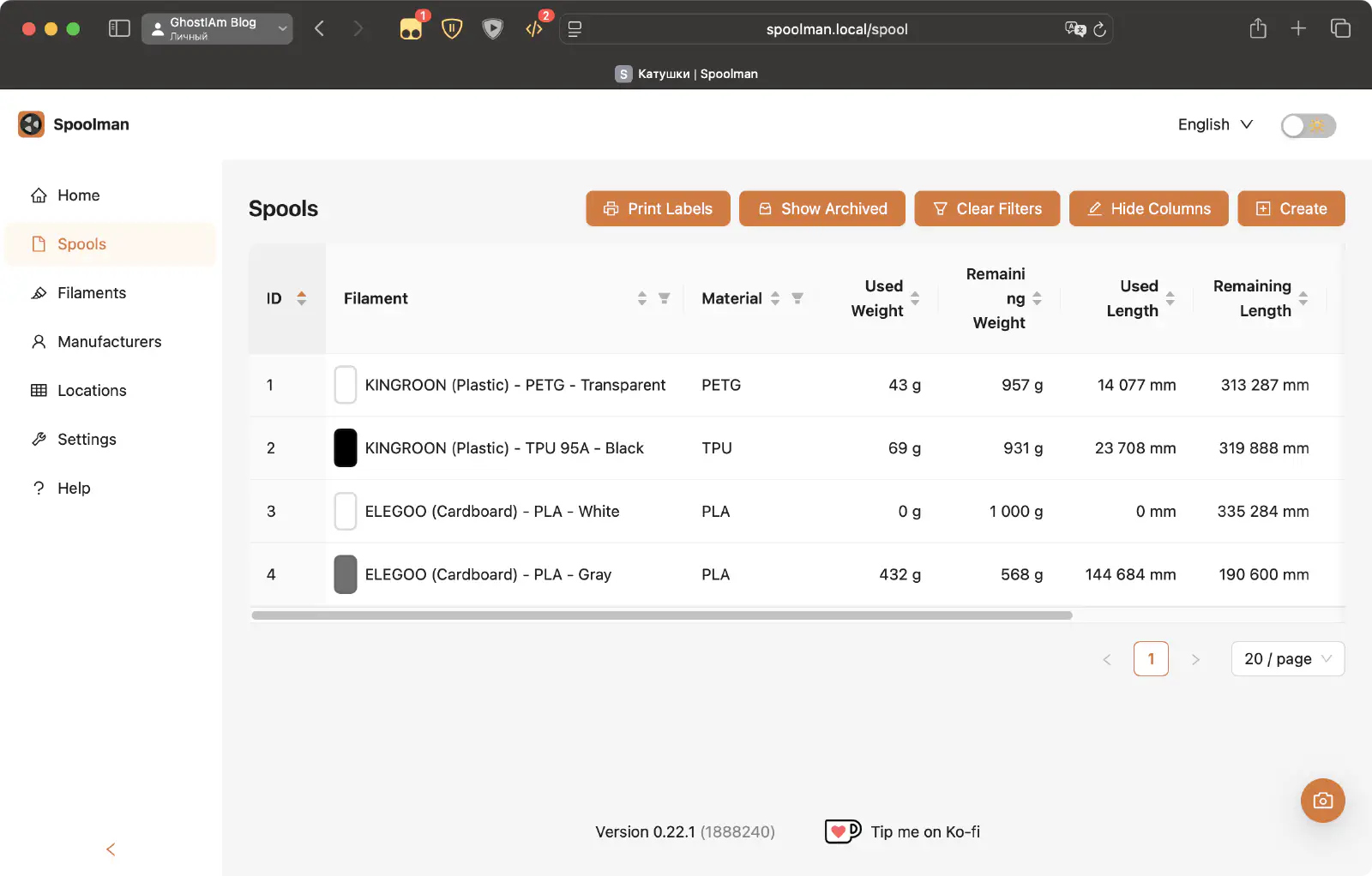
Spoolman interface
This guide assumes that:
- You know what SSH is and how to use it at a basic level.
- You are using the official firmware (at the time of writing this guide, the latest version was
V4.4.24). - You have installed the Spoolman server on an external device following these instructions
The author is not responsible for any consequences resulting from modifications to the printer configuration.
The instructions have been tested for firmware
V4.4.24.Connecting to the printer via SSH Link to heading
You can view the printer’s IP through the screen:
Photos
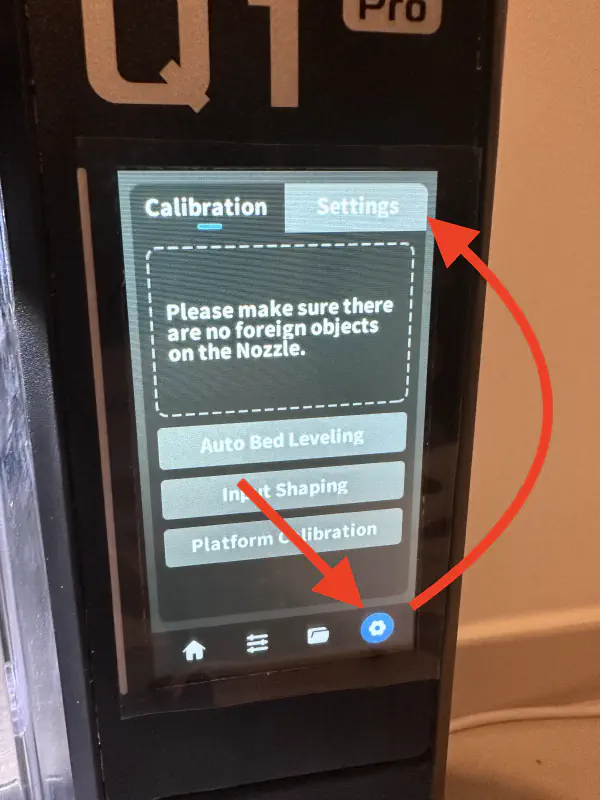
Press the gear icon at the bottom right. Then the Settings tab at the top left.
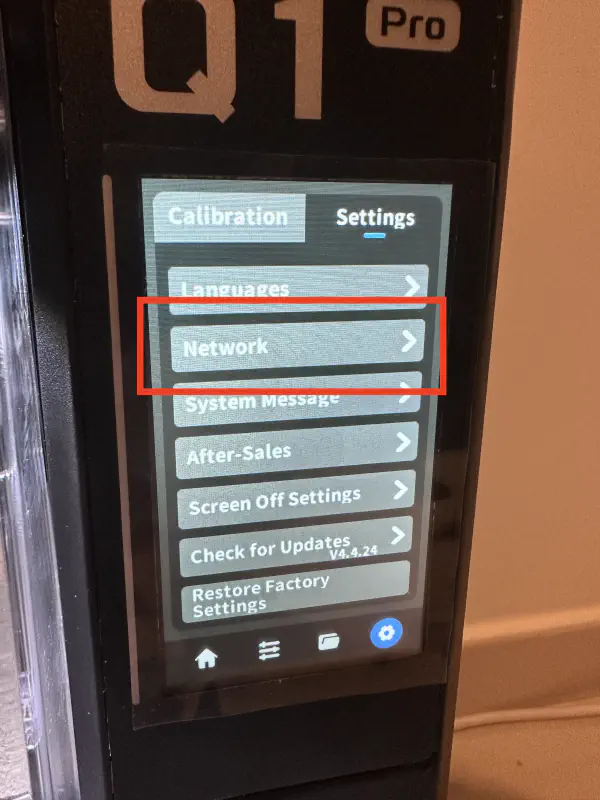
Select Network menu item.
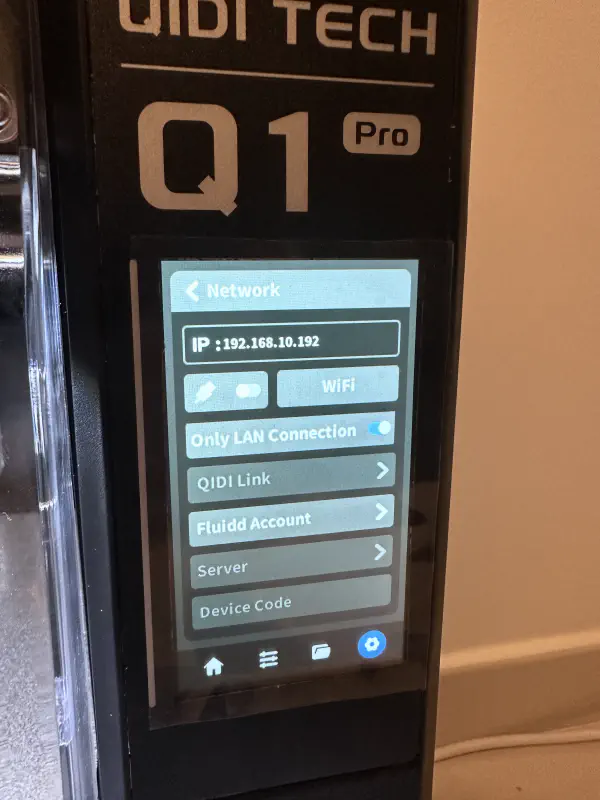
And here’s the IP.
Login: mks
Password: makerbase
ssh mks@<ip>Adding Spoolman to Moonraker Link to heading
Download the spoolman component for Moonraker, as it’s not included in the printer’s stock firmware.
This specific version is needed because newer versions won’t work with the old Moonraker version.
wget https://raw.githubusercontent.com/Arksine/moonraker/7e85ac97c9c32ceb0df45d5d10e3346a899df76d/moonraker/components/spoolman.py -O /home/mks/moonraker/moonraker/components/spoolman.pyRestart the Moonraker service:
sudo service moonraker restartUpdating Fluidd Link to heading
Now we need to update Fluidd so we can see and manage filament spools directly from it.
We’ll also install a specific version, namely v1.28.0, as it works with this printer.
Make a backup of the original version:
mv ~/fluidd ~/fluidd.bak-$(date +'%Y-%m-%dT%T')Create a directory and navigate to it:
mkdir ~/fluidd && cd ~/fluiddDownload Fluidd and unzip it:
wget https://github.com/fluidd-core/fluidd/releases/download/v1.28.0/fluidd.zip -O fluidd.zip
unzip fluidd.zip
Done, no need to restart anything at this stage.
Configuring Spoolman Connection 1 Link to heading
Open the printer’s Fluidd page in your browser (or slicer), go to the Configuration section, open the moonraker.conf
file, and add at the very end:
[spoolman]
server: http://192.168.0.123:7912
sync_rate: 5192.168.0.123 with the IP where Spoolman is installed.Click the SAVE button and then CLOSE.
Also add these macros to printer.cfg
[gcode_macro SET_ACTIVE_SPOOL]
gcode:
  {% if params.ID %}
    {% set id = params.ID|int %}
    {action_call_remote_method(
       "spoolman_set_active_spool",
       spool_id=id
    )}
  {% else %}
    {action_respond_info("Parameter 'ID' is required")}
  {% endif %}

[gcode_macro CLEAR_ACTIVE_SPOOL]
gcode:
  {action_call_remote_method(
    "spoolman_set_active_spool",
    spool_id=None
  )}
Click the SAVE button and then CLOSE.
Auto-clearing selected spool when changing it through the printer’s screen Link to heading
Let’s edit the load/unload filament macros so that after changing the spool, it’s automatically cleared in Spoolman as
well.
To do this, open the gcode_macro.cfg file, find the M603 and M604 macros, and add the CLEAR_ACTIVE_SPOOL command
at the end,
it should look like this:
[gcode_macro M603]
description: unload filament
gcode:
    M118 Heat up complete
    G92 E0
    G0  E15 F400
    G4  P1000
    G92 E0
    G1  E-90 F800
    M400
    M118 Filament unloaded
    CLEAR_ACTIVE_SPOOL

[gcode_macro M604]
description: load filament
gcode:
    M118 Heat up complete
    M83
    G1 E80 F200
    M400
    M118 Filament loaded. Select Filament in Spoolman!!!
    CLEAR_ACTIVE_SPOOL
Click the SAVE button and then CLOSE.